Jobs Overview
A job is a production order — it tells your shop floor "we need to make these parts." Jobs are created from approved quotes and serve as the central record for tracking an order through manufacturing.
What's in a Job
When you create a job from a quote, it inherits:
- Parts — the items you need to manufacture, with their quantities
- Materials — raw materials required for each part
- Operations — the manufacturing steps for each part (these become work orders)
- Purchased items — off-the-shelf components to buy and include
A job also tracks additional order information:
- Client PO number — your client's purchase order reference
- Promised delivery date — the date you committed to deliver
- Order notes — any special instructions or context
- PO file — an attached copy of the client's purchase order document
Creating a Job from a Quote
You create a job from a quote that your client has approved.
- Open the quote you want to convert.
- Click the Create Job button.
- Enter the Client PO Number (required). If you upload a PO file, Forge can auto-detect the PO number from the document.
- Set a Promised Delivery Date if you have one.
- Select which parts to include. You can create a job for all parts or select a subset for a partial order.
- Optionally adjust quantities for each part if the client ordered different amounts than originally quoted.
- Click Create Job to confirm.
Forge assigns a sequential job number (e.g., J-001, J-002) and sets the initial status to Open. The quote is marked as converted and locked from further edits.
Partial orders: If you only include some parts from the quote, the job is flagged as a partial order. You can create additional jobs from the same quote later for the remaining parts.
Sourcing Materials and Purchased Items
Once a job is open, you source its materials, purchased items, and outside operations right from the job detail page.
- Switch the Job Progress section's Show control to Sourcing (or pair it with All to see every part's items at once).
- Check the boxes next to the items you want to request pricing on or order. Items already on a purchase order, taken from inventory, or marked client-supplied can't be selected.
A purchased item you would otherwise order has a Take from inventory button for a tool or consumable the shop already has, and it works even though the job's quote is locked. Pick a tracked inventory item, keep the item untracked, or add it to Inventory on the spot. The item stops holding up the job's ETA and drops off the Purchasing requirements list. Its price, name and quantity stay as quoted. Order it instead puts it back on the list of things to buy. An item already on a purchase order can't be taken from inventory, so its PO keeps its link to the job.
Selection lives at the job level, not per part — check items while looking at one part, switch to another part or view, and your picks are still there. As soon as anything is checked, a floating bar appears at the bottom of the page:
- Create RFQ — bundles everything selected, across parts, into a single Request for Quotation.
- Create PO(s) — opens a review modal that groups your selection by supplier and creates one purchase order per supplier when you confirm. Only appears if you have permission to create purchase orders.
- Clear selection — deselects everything.
Each item's supplier responses appear as pills next to it. A pill gets a Quoted badge when it's the response currently priced into the job's quote, and every RFQ pill has its own Convert to PO button for converting that one response on its own, without building a batch.
Converting — whether it's a single pill's Convert to PO or the floating bar's Create PO(s) review modal — can also email each supplier in the same step: use Convert & send email (single pill) or Create & send POs (bulk review modal) instead of the plain create button. Forge attaches the PO PDF automatically and the PO's status moves straight to Sent. Suppliers without an email contact on file still get their PO created — it just stays a Draft so you can send it manually. Either way, the source RFQ's pill turns green and shows Converted to with a link to the new PO.
A price only reaches the job's cost analysis once it's on a purchase order — there's no way to apply a price straight to a job. See Tracking Progress for how PO conversion feeds into cost tracking, and Comparing RFQ Responses for more on converting a response.
Job Statuses
Jobs move through a series of statuses as they progress:
| Status | Meaning | |---|---| | Draft | Job created but not yet confirmed. Can be edited freely. | | Open | Confirmed and ready for production planning. Materials may still need to be sourced. | | In Production | Work orders are active on the shop floor. | | On Hold | Production paused — waiting on materials, client clarification, or another issue. | | Ready to Ship | All work orders are complete. Parts are ready for delivery. | | Shipped | Parts have been shipped to the client. | | Completed | Client has received the parts and the job is done. | | Closed | Final state. Job is archived for record-keeping. | | Cancelled | Job was cancelled before completion. |
Not every job passes through every status. A straightforward order might go Open, In Production, Ready to Ship, Shipped, Completed, Closed.
To change a job's status, use the status dropdown on the job detail page. Forge only shows valid transitions — you can't jump from Draft directly to Shipped, for example. Some backward transitions (like moving from Ready to Ship back to In Production) require a reason.
Navigating the Jobs List
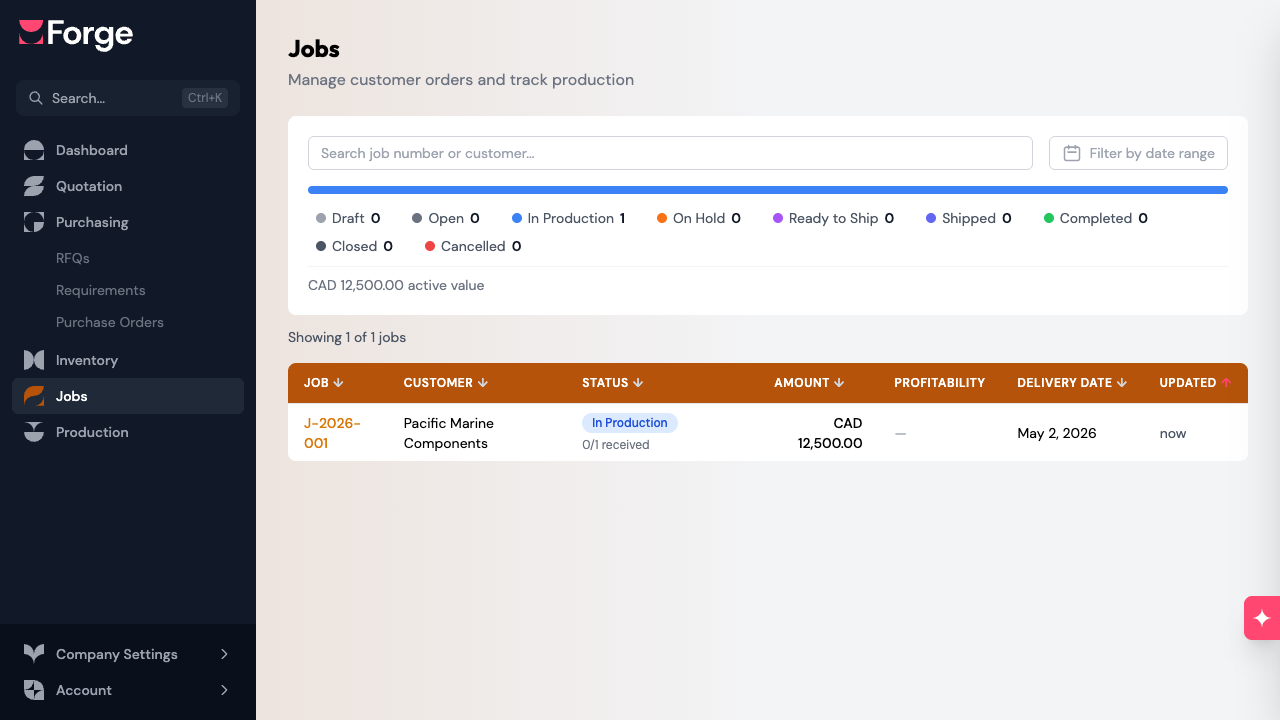
The jobs list page shows all your jobs in a table. Each row displays:
- Job number — click to open the job detail page
- Client — the client who placed the order, with a "Partial" badge if it's a partial order
- Status — the current status badge, with progress indicators showing how many materials have been received and how many operations are complete
- Amount — the total job value
- Profitability — a cost variance indicator showing whether actual costs are tracking above or below your quoted price (only shows once operations have been completed)
- Delivery date — the promised delivery date
- Last updated — when the job was last modified
Filtering and Sorting
Use the controls at the top of the page to find specific jobs:
- Search — filter by job number or client name
- Date range — filter by when jobs were last updated
- Status pipeline — click a segment in the status bar to filter by that status. Click again to clear the filter.
Click any column header to sort by that field. The pipeline bar also shows the total value of active jobs (those not in Draft, Completed, Closed, or Cancelled status).
Related Articles
- Work Orders — how jobs are broken into individual manufacturing steps
- Releasing a Job to Production — what happens when a job moves from Open to In Production
- Production Board — managing work orders on the shop floor
- Tracking Progress — monitoring work orders, phases, and job progress
- Comparing RFQ Responses — converting a supplier response to a purchase order
- Understanding the Workflow — how jobs fit into the full quote-to-delivery process