Quotes Overview
The Quotation page is your central hub for all client quotes. From here you can see every quote at a glance, filter by status or date, and take quick actions like duplicating, archiving, or changing a quote's status.
Opening the Quote List
Navigate to Quotation from the sidebar. You'll see a table of all your quotes along with a status pipeline bar at the top.
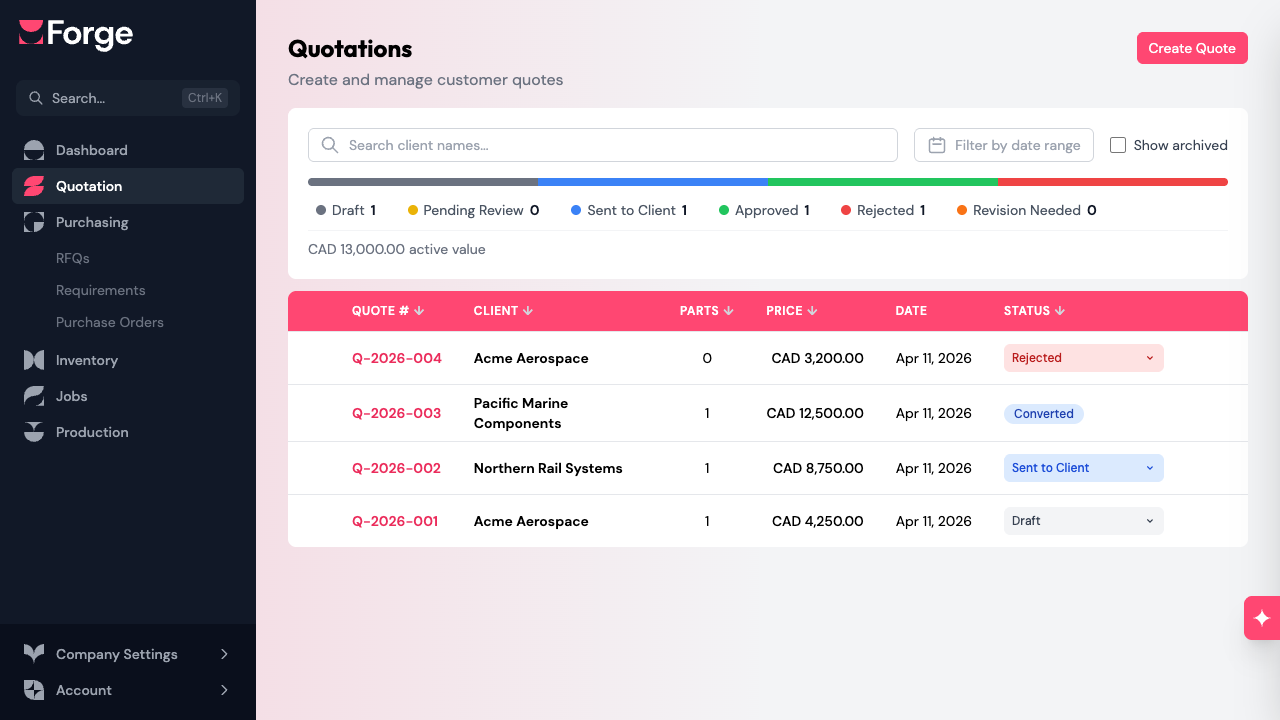
Each row in the table shows:
- Quote number — the auto-generated identifier (e.g., Q-0042)
- Client — the company the quote is for
- Parts — how many parts are included
- Price — the total quoted amount
- Date — when the quote was created
- Status — the current status (click to change it)
Quote Statuses
Every quote moves through a series of statuses. The pipeline bar at the top of the page shows how many quotes are in each stage.
| Status | Meaning | |-----------|--------------------------------------------------------------| | Draft | Still being worked on. Not yet ready for the client. | | Pending | Complete and waiting for internal review before sending. | | Sent | Delivered to the client. Waiting for their response. | | Expired | A sent quote whose validity window has passed (the quote's date plus its validity days). Still open until you reject or revise it. | | Approved | The client accepted the quote. Ready to convert to a job. | | Rejected | The client declined the quote. | | Revised | You've updated the quote after feedback and it needs to be re-sent. |
Expired isn't a status you set — Forge derives it automatically from the quote's validity period, so a sent quote shows as Expired the moment it lapses. You can still move it forward (approve, reject, or revise) just like any sent quote, and it still counts toward your active pipeline value.
Changing Status
Click the status badge on any quote row to open a dropdown of available transitions. Forge only shows valid next steps — for example, a Draft quote can move to Pending or Sent, but not directly to Approved.
Moving a quote backward (e.g., from Sent back to Draft) requires a reason. Forge prompts you to enter one so there's a record of why the status was reverted.
When a quote reaches Approved, a "Create Job" option appears in the status dropdown. This converts the quote into a production job.
Pipeline Bar
The colored bar below the filters gives you a visual breakdown of your active quotes by status. Click any segment to filter the table to that status. Click the same segment again (or clear the filters) to show all quotes.
The bar also displays the total active value — the combined price of all non-archived quotes.
Filtering and Searching
Use the controls above the table to narrow down your list:
- Search — type a quote number, client name, or any keyword. The table filters in real time.
- Date range — pick a start and end date to see quotes created within that window.
- Show archived — check this box to include archived quotes in the results. By default, archived quotes are hidden.
Actions
Single Quote Actions
Click the three-dot menu on any quote row to access:
- Review & Send — jump to the send page to preview the PDF and email it to the client.
- Duplicate — create a copy of the quote with all its parts, materials, and operations.
- Archive / Unarchive — move a quote out of your active list without deleting it.
Batch Actions
Select multiple quotes using the checkboxes on the left side of the table. A toolbar appears with batch options:
- Delete — permanently remove the selected quotes.
- Duplicate — duplicate all selected quotes at once.
- Set Status — change the status of all selected quotes to the same value.
Sorting
Click any column header to sort the table by that column. Click again to reverse the sort order. You can sort by quote number, client, parts count, price, date, or status.