Inventory Overview
The Inventory section gives you a real-time view of what raw materials and purchased items you have on hand, so you can make informed decisions when quoting jobs and planning production.
What Inventory Tracks
Forge MRP tracks two types of inventory items:
- Materials — raw stock like aluminum round bar, steel plate, or brass tube. Each material record includes its type, shape, dimensions, grade, and quantity.
- Purchased items — off-the-shelf components you buy and keep in stock, such as fasteners, bearings, or fittings. Each record includes the item name, item number, and quantity.
Every item also tracks a unit cost, storage location, and stock status.
Navigating the Inventory List
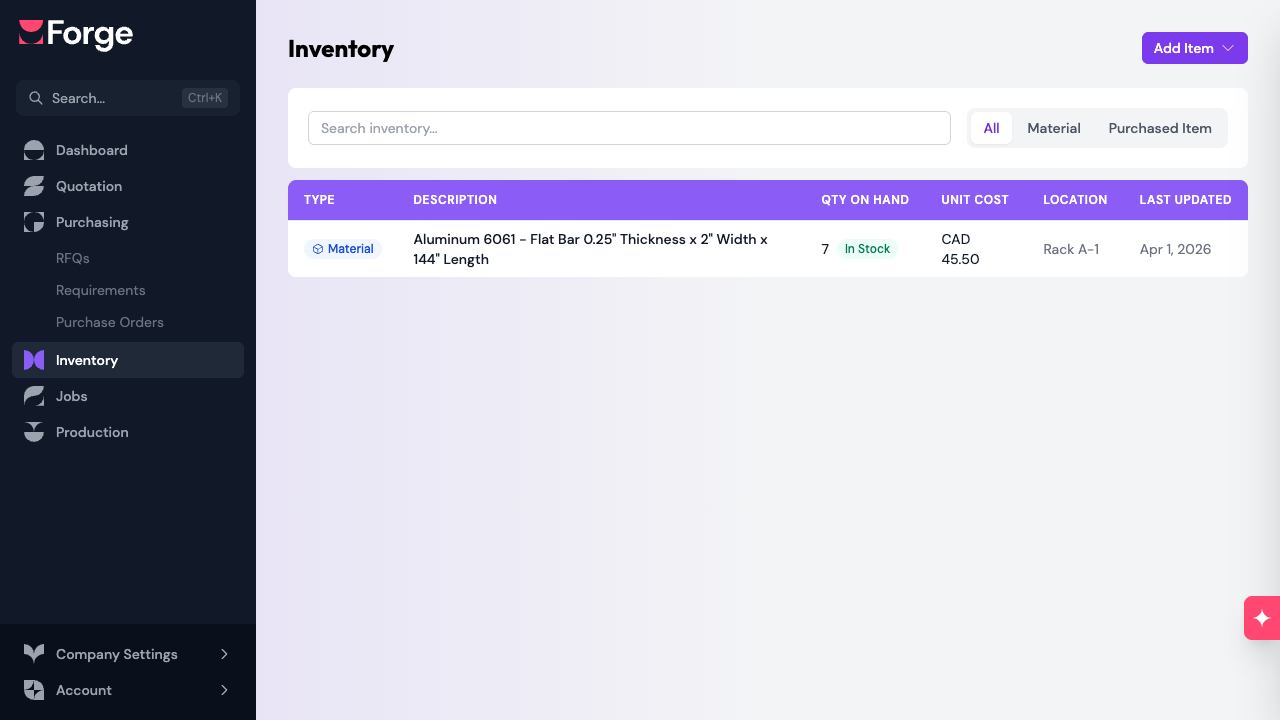
Open Inventory from the left sidebar. You'll see a table of all your inventory items with the following columns:
- Type — a badge showing whether the item is a Material or a Purchased Item
- Description — an auto-generated summary (e.g., "Aluminum 6061 - Round Bar 2" Diameter x 12" Length")
- Quantity on Hand — how many units you currently have, along with a stock status badge
- Unit Cost — the cost per unit in your home currency
- Location — where the item is stored (e.g., "Rack A3", "Shelf B2")
- Last Updated — when the item's quantity was last changed
Filtering and Searching
Use the controls above the table to narrow down the list:
- Search — type in the search bar to filter by description, material name, purchased item name, or location.
- Type filter — click All, Material, or Purchased Item to show only that category.
Understanding Stock Status
Each item displays a color-coded badge based on its current quantity:
- In Stock (green) — you have sufficient quantity on hand.
- Low Stock (amber) — quantity is running low and may need replenishment.
- Out of Stock (red) — quantity is zero.
These badges help you spot items that need reordering at a glance.
Adding Inventory Items
To add a new item, click the Add Item button in the top right corner and choose either Material or Purchased Item from the dropdown.
Adding a Material
- Click Add Item and select Material.
- Choose the Material Type (e.g., Aluminum 6061) and Shape (e.g., Round Bar).
- Select your Unit System (Imperial or Metric).
- Enter the dimensions that appear based on the shape you selected — for example, a round bar will ask for diameter and length.
- Enter the quantity on hand, unit cost, and optionally a storage location and notes.
- Click Save.
The description is auto-generated from your selections (e.g., "Aluminum 6061 - Round Bar 2" Diameter x 12" Length").
Adding a Purchased Item
- Click Add Item and select Purchased Item.
- Search for an existing purchased item from your catalog, or enter a new description and item number.
- Enter the quantity on hand, unit cost, and optionally a storage location and notes.
- Click Save.
Viewing Item Details
Click any row in the inventory table to open the item's detail page. Here you'll see:
- Item summary — type, stock status, quantity, unit cost, location, supplier, grade, material type, shape, and any notes.
- Transaction history — a chronological log of every quantity change, including the date, type (Received, Consumed, or Adjusted), quantity delta, unit cost at the time, a reference link (e.g., to a PO or Job), and the reason for the change.
Adjusting Quantities
From the item detail page, click Adjust Quantity to record a stock correction.
- Review the current quantity shown at the top.
- Enter a quantity change — use a positive number to add stock and a negative number to remove it. The new quantity is previewed below; it cannot go below zero.
- Enter a reason for the adjustment (required) — for example, "Physical count correction" or "Damaged stock discarded."
- Optionally add notes with more detail.
- Click Save.
The adjustment is recorded in the transaction history as an "Adjusted" entry.
Editing and Archiving Items
- Edit — click the Edit button on the detail page to update the item's description, unit cost, location, or notes.
- Archive — click the Archive button to remove an item from the active inventory list. Archived items are hidden from the list but not deleted.
Automatic Stock Updates
Inventory quantities are updated automatically in two situations:
- PO Receiving — when you receive materials or purchased items against a purchase order, the received quantity is automatically added to inventory. For purchased items, Forge looks for an existing inventory record and adds to it; for materials, a new record is created.
- Job Consumption — when materials are consumed for a production job, the quantity is automatically deducted from inventory.
Both of these appear in the transaction history with a reference link back to the originating PO or Job.
Tip: Keep your inventory accurate by doing periodic physical counts and using the Adjust Quantity feature to correct any discrepancies. Accurate inventory data helps you choose the right sourcing mode when quoting.
Related Articles
- Material Types and Shapes — how materials are classified by type, shape, and dimensions
- Sourcing Modes — the four ways to source materials when building a quote
- Understanding the Workflow — how inventory fits into the quote-to-production pipeline