Company Profile
Your company profile contains the business information that appears on outgoing documents like quotes and purchase orders. This is one of the first things to configure when you set up Forge MRP.
Getting There
Go to Settings > Company Details from the sidebar.
Basic Information
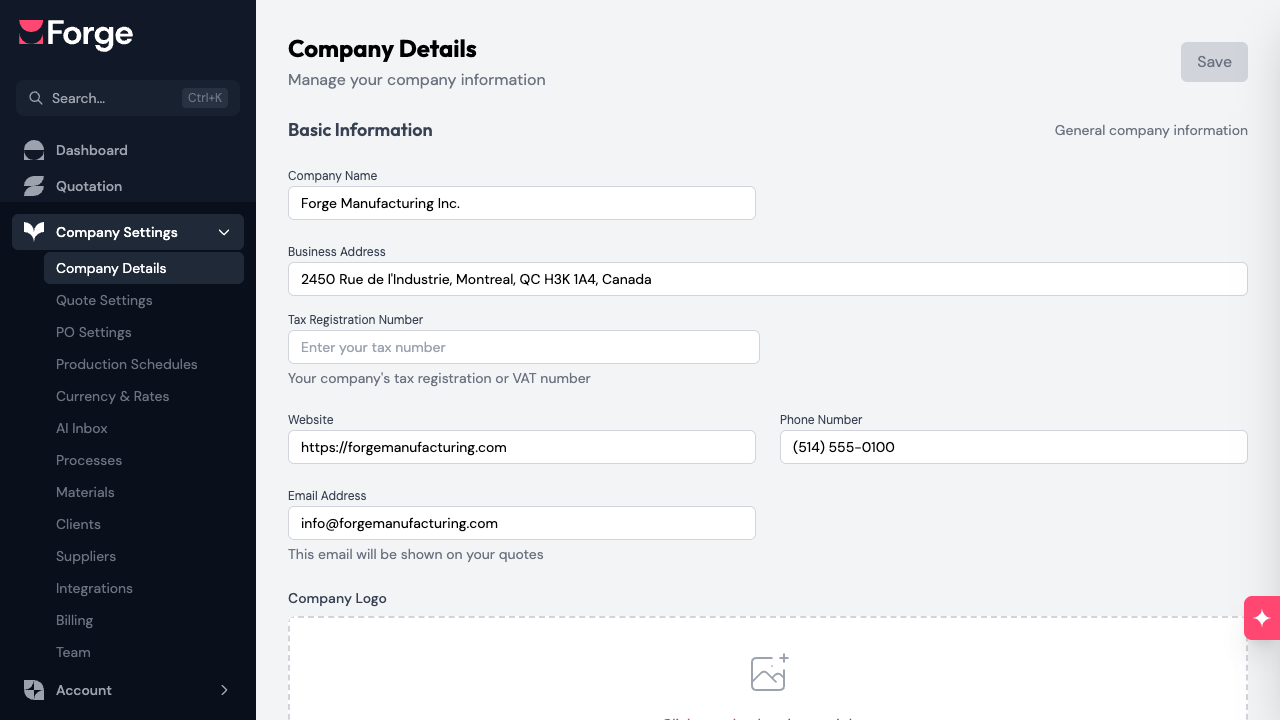
Fill in the following fields:
- Company name -- this appears on every quote and purchase order you send.
- Address -- start typing your address and select from the autocomplete suggestions. Forge uses this to determine your region and configure the correct tax fields.
- Website -- your company website. Forge automatically adds
https://if you leave it off. - Phone -- formatted automatically as you type (North American format).
- Email -- the contact email shown on outgoing documents. This is separate from your login email.
- Logo -- upload your company logo (max 5 MB). It appears on PDF quotes and purchase orders.
Tax Numbers
Tax fields appear automatically based on the country in your address:
- Canada -- GST/HST number, plus a provincial tax number if your province requires one (QST in Quebec, PST in British Columbia, etc.).
- United States -- EIN (Employer Identification Number).
- Other countries -- a general Tax ID field.
If you change your address to a different country, the tax fields update to match. Your previously entered tax numbers are preserved if you switch back.
Saving Changes
The Company Details page uses an explicit save model:
- Make your changes. A Save button activates when there are unsaved edits.
- Click Save (or press Cmd+S / Ctrl+S) to save.
- Click Discard to revert to the last saved state.
If you try to navigate away with unsaved changes, Forge asks you to confirm before leaving.
Tip: Complete your company profile before sending your first quote. Missing information (like a logo or tax number) can make outgoing documents look incomplete to your clients.